Guide

Getting started with Ecryptgram

Install the client, turn encryption on for a private chat, and read what the client is telling you about each message.

STEP 01

Install the client

Ecryptgram for Windows installs next to the official Telegram app without touching it.

  1. Download the installer from the official site.
  2. Run Ecryptgram.exe. Windows may show a SmartScreen prompt because the build is signed with the project's own certificate — choose More info, then Run anyway.
  3. Sign in with your existing Telegram account and the phone number registered to it.
  4. Both clients stay installed. Neither application affects the other.
STEP 02

Turn encryption on

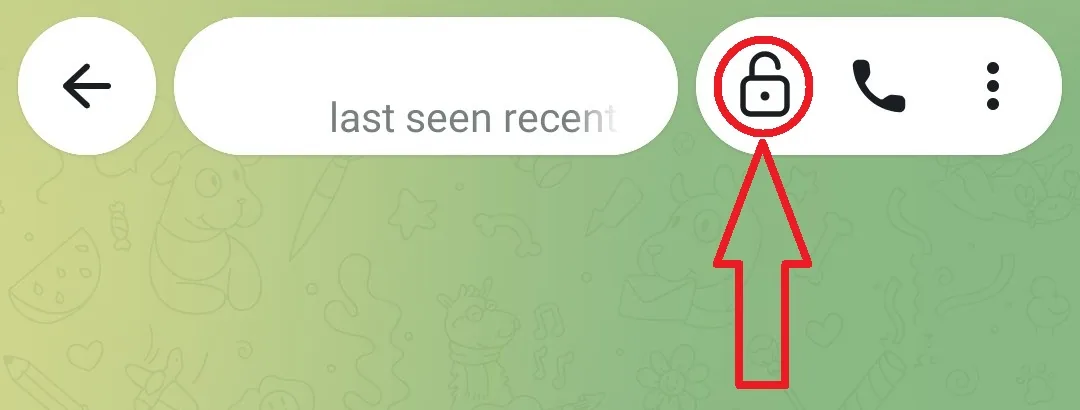
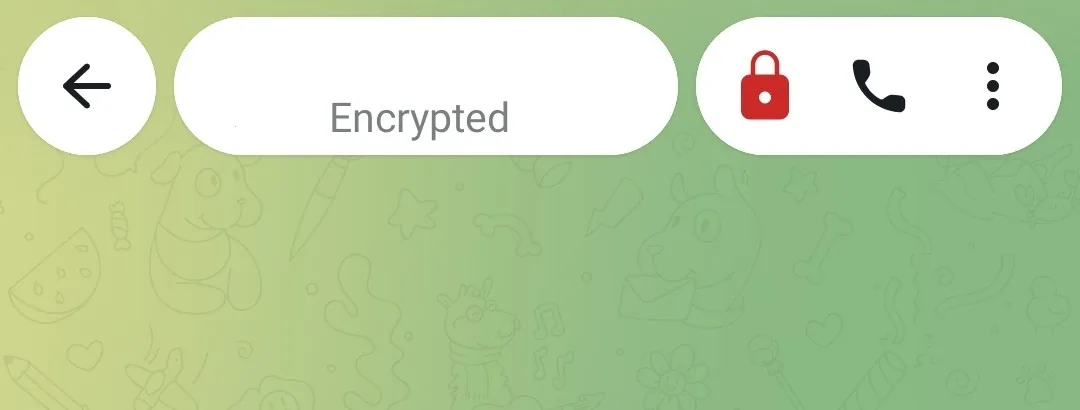
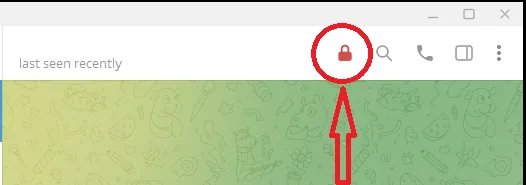
The lock is the first control in the conversation header, to the left of search and the call buttons. Click it once. It fills red straight away, and the person you are writing to sees the same change at their end.

The Ecryptgram desktop chat header, with the encryption lock control circled.
The encryption switch, circled, in the header of a conversation.

STEP 03

Every message carries the lock

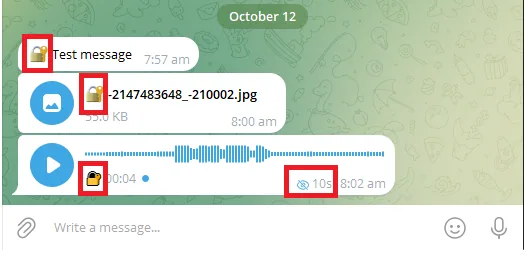
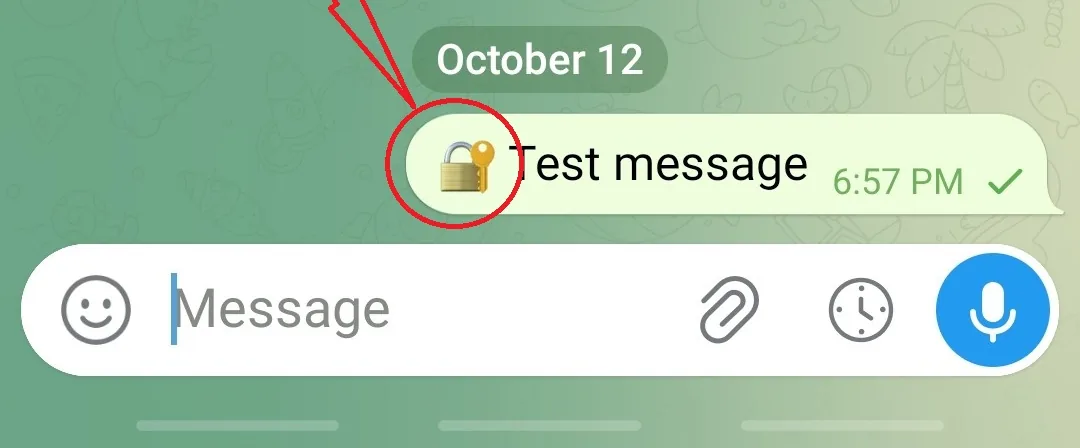
Once encryption is on, everything you send is marked in the message itself — a small lock to the left of the text, on the photo thumbnail, and on the voice-message player. A voice message with a self-destruct timer also shows the remaining time next to it.

If a message has no lock, it was not encrypted. That happens when the other person is on the official Telegram app rather than Ecryptgram — both ends need to hold the session key.

Sent messages each carrying a small lock marker: a text message, a photo and a voice message, the last also showing a 10-second self-destruct timer.
Encrypted text, photo and voice messages. The voice message shows a 10 second self-destruct timer.

STEP 04

Disappearing messages

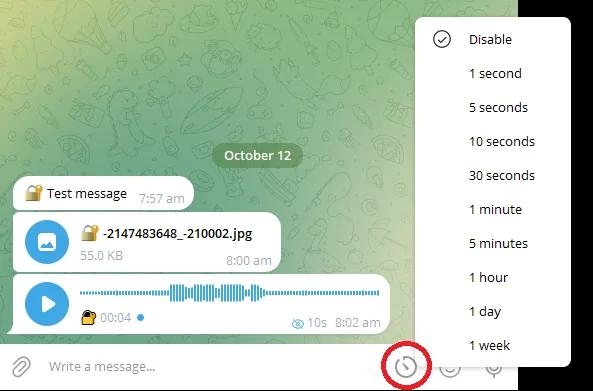
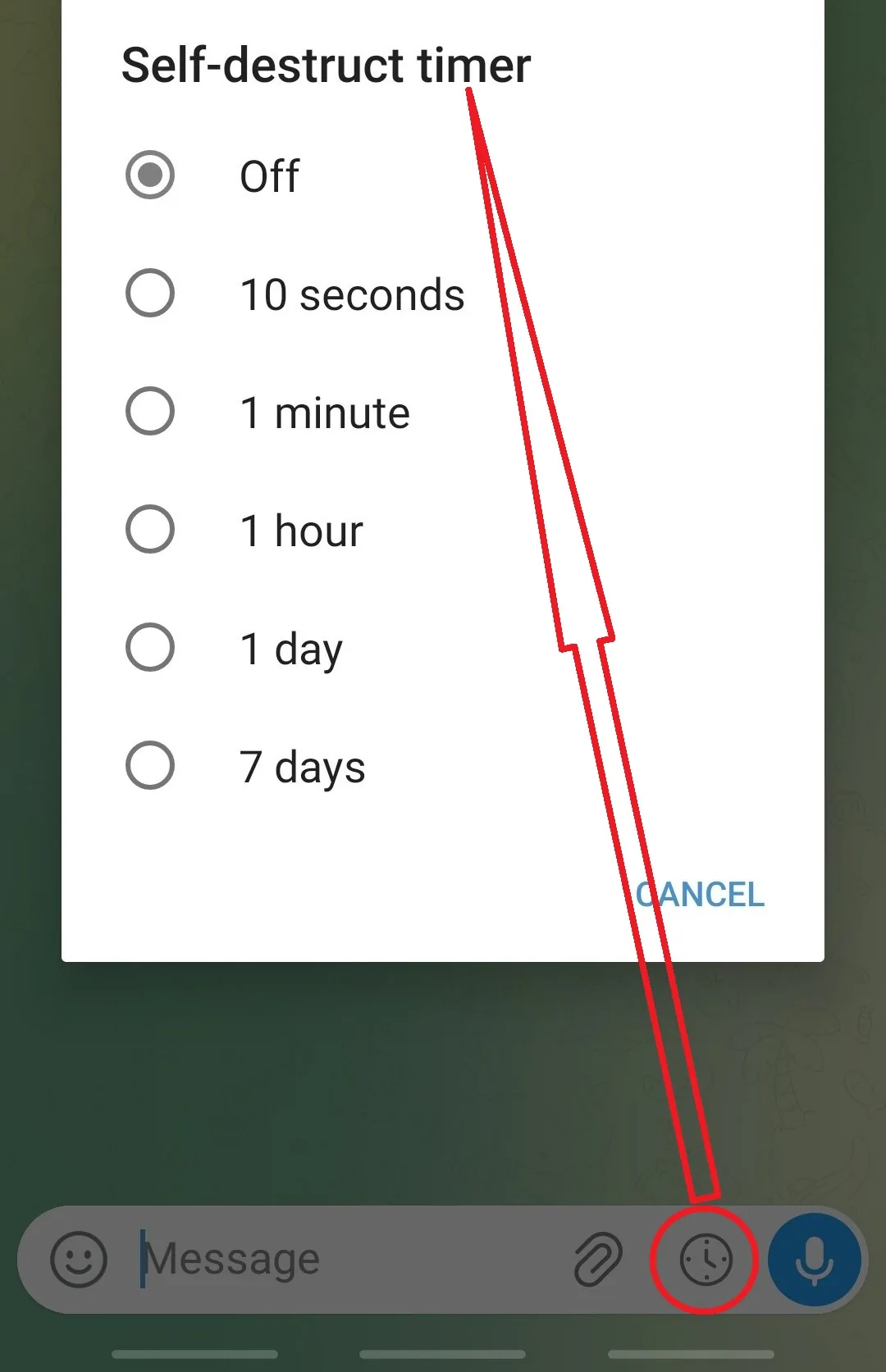
With encryption on, a clock button appears in the message bar. Click it to open the self-destruct timer, then pick how long a message should live. The message is destroyed on both devices when the timer runs out.

The self-destruct timer list opened from the clock button in the message bar, with the clock button circled.
The clock button in the message bar opens the timer.
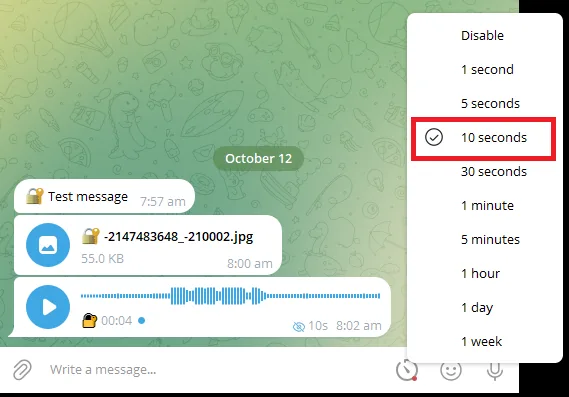
The self-destruct timer list with the 10 seconds option selected.
Pick a duration — here, 10 seconds.

Windows offers ten steps: 1 second, 5 seconds, 10 seconds, 30 seconds, 1 minute, 5 minutes, 1 hour, 1 day, 1 week, or Disable.

What the locks mean

The lock in a conversation header tells you the encryption state of that chat.

Hollow lock — encryption off

This conversation is not end-to-end encrypted. Messages are delivered normally, but they are not protected between the two devices.

Red lock — encryption on

Both devices hold the session key, and the conversation is encrypted end to end. Only the two endpoints can read it.

Restrictions — forwarding off

Forwarding, screenshots or copying are disabled for this conversation. Disappearing-message timers appear here too.

Verify

Check the file before you run it

Every release is published with a SHA-256 checksum. Compare it before you install — this is the only way to be sure the file you have is the file we built.

Windows Ecryptgram-7.4.1.exe
SHA-256

8bd1cd09c0d79e585e5b66dc6dcbd0c4f4a9446ad7adcf30a0d27252f7133380

certutil -hashfile Ecryptgram-7.4.1.exe SHA256

Get-FileHash .\Ecryptgram-7.4.1.exe -Algorithm SHA256

Android Ecryptgram-13.2.1.apk
SHA-256

b81367b1060af357ab1b0d41a54af6b73e81ad0b6049b8231afb3191a70e8b1b

certutil -hashfile Ecryptgram-13.2.1.apk SHA256

Get-FileHash .\Ecryptgram-13.2.1.apk -Algorithm SHA256

If the value does not match, do not install the file. Delete it, download it again, and tell your administrator.

Requirements

What you need

Windows

Windows 10 or Windows 11, 64-bit. Client version 7.4.1. Around 1 GB of free disk space for the application and its local message cache.

Android

Android 5.0 (Lollipop) or later. Client version 13.2.1. Around 300 MB of free storage, plus room for the media you receive.

Network

Outbound access to the Telegram network and to the update service. No inbound ports are required on the client.