Guide

How to use Ecryptgram

Install the client, turn encryption on for a one-to-one conversation, and read what the client is telling you about each message. Every screenshot below is the shipping client — Windows 7.2.6 and Android 12.10.1.

STEP 01

Install the client

Ecryptgram for Windows 7.2.6 installs next to the official Telegram app without touching it.

  1. Download the installer from the official site.
  2. Run Ecryptgram-Setup-7.2.6.exe. Windows may show a SmartScreen prompt because the build is signed with the project's own certificate — choose More info, then Run anyway.
  3. Sign in with your existing Telegram account and the phone number registered to it.
  4. Both clients stay installed. Neither application affects the other.
STEP 02

Turn encryption on

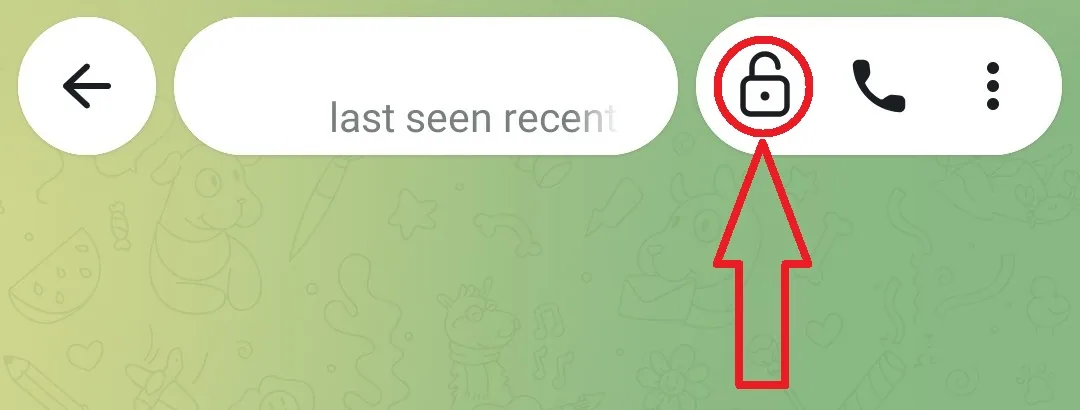
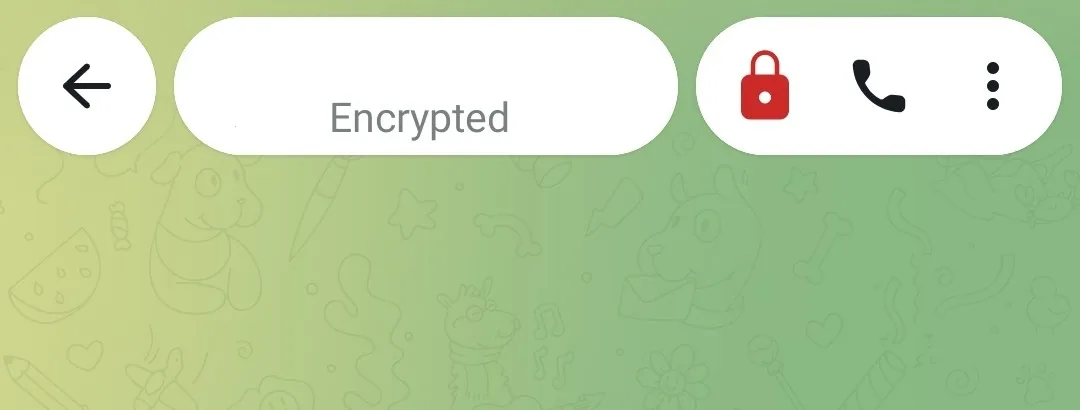
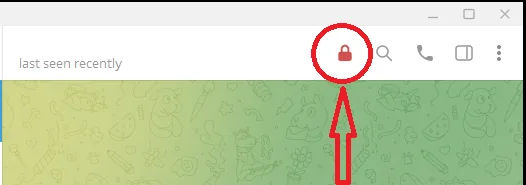
The lock is the first control in the conversation header, to the left of search and the call buttons. Click it once. It fills red straight away, and the person you are writing to sees the same change at their end.

The Ecryptgram desktop chat header, with the encryption lock control circled.
The encryption switch, circled, in the header of a 1:1 conversation.

STEP 03

Every message carries the lock

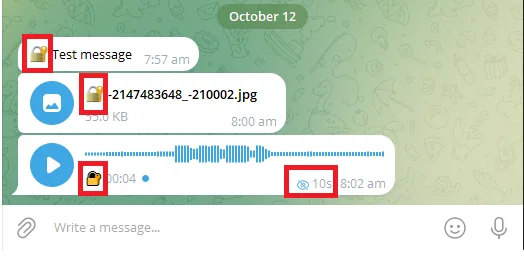
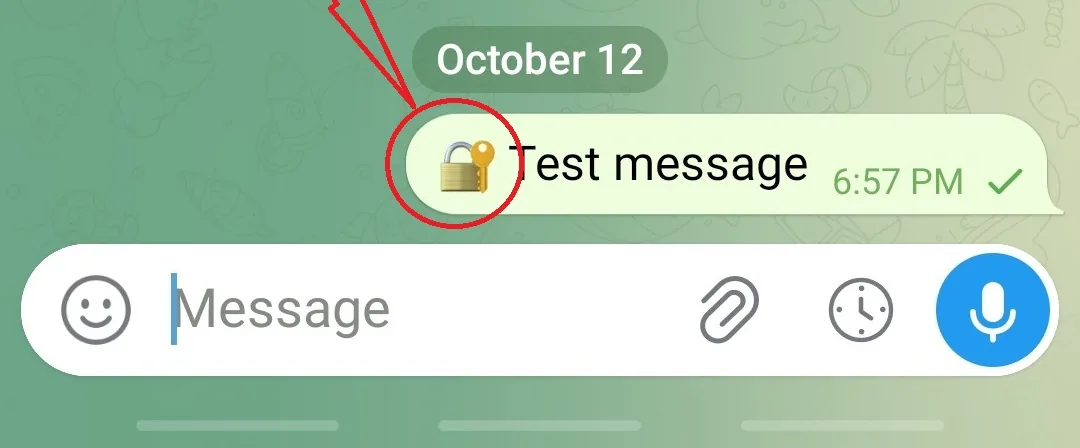
Once encryption is on, everything you send is marked in the message itself — a small lock to the left of the text, on the photo thumbnail, and on the voice-message player. A voice message with a burn timer also shows the remaining time next to it.

If a message has no lock, it was not encrypted. That happens when the other person is on the official Telegram app rather than Ecryptgram — both ends need to hold the session key.

Sent messages each carrying a small lock marker: a text message, a photo and a voice message, the last also showing a 10 second burn timer.
Encrypted text, photo and voice messages. The voice message shows a 10 second self-destruct timer.

STEP 04

Burn after reading

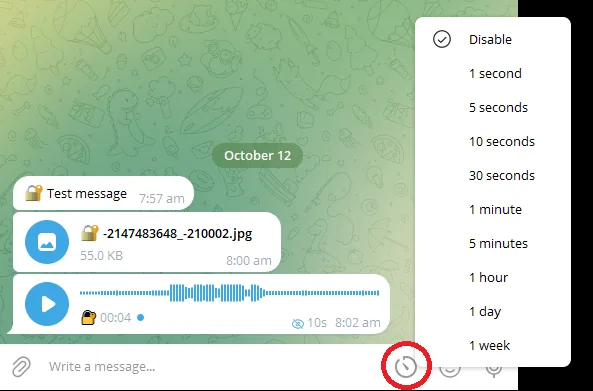
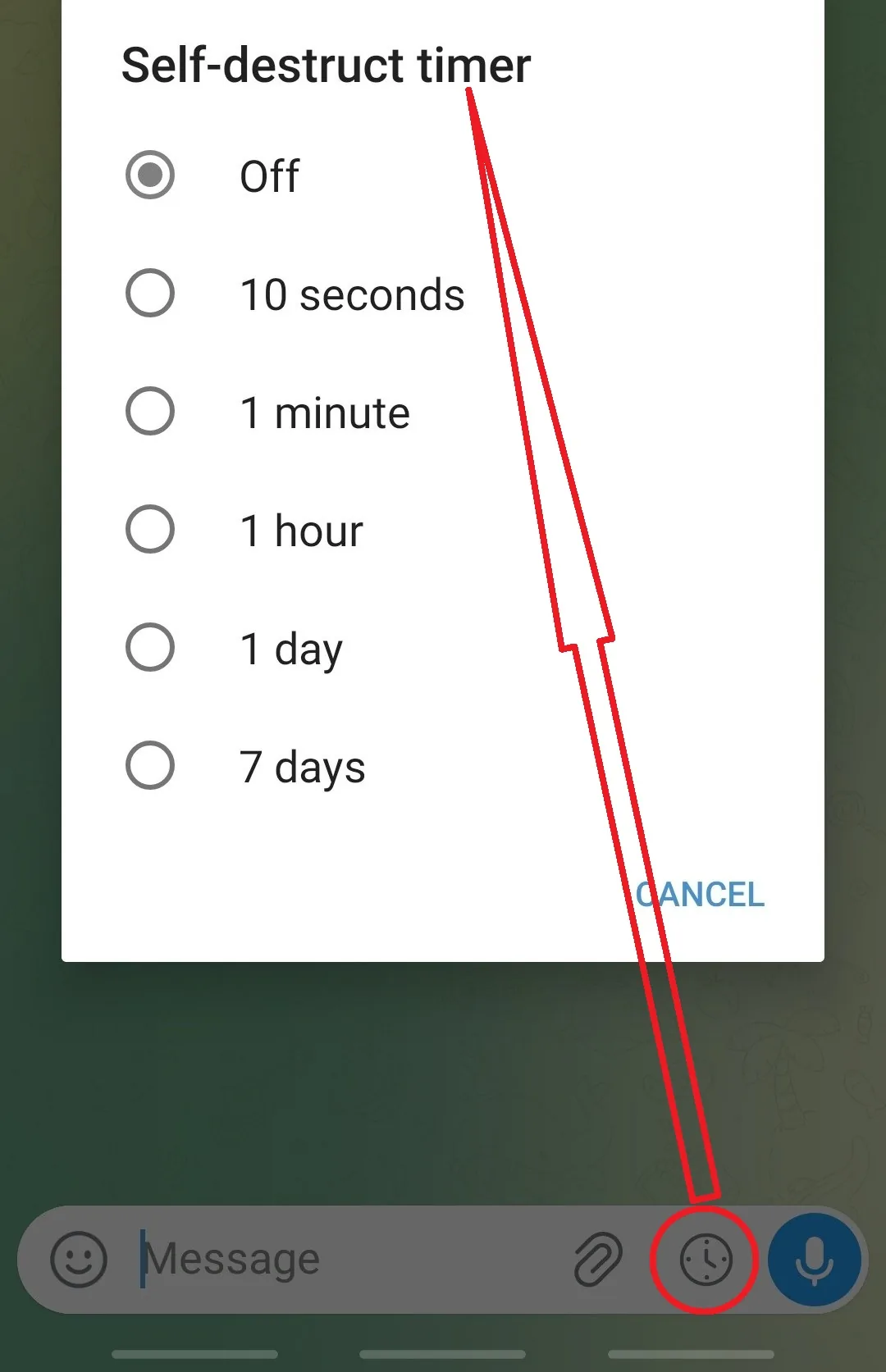
With encryption on, a clock button appears in the message bar. Click it to open the self-destruct timer, then pick how long a message should live. The message is destroyed on both devices when the timer runs out.

The self-destruct timer list opened from the clock button in the message bar, with the clock button circled.
The clock button in the message bar opens the timer.
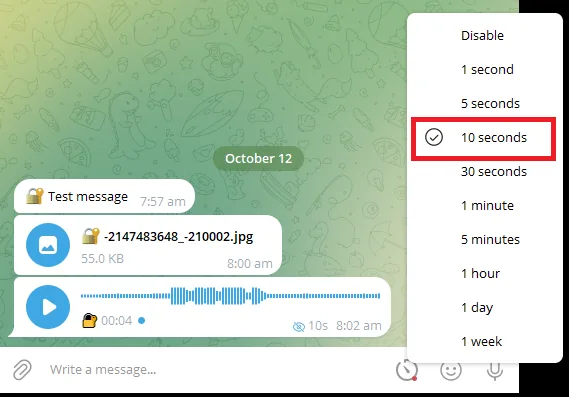
The self-destruct timer list with the 10 seconds option selected.
Pick a duration — here, 10 seconds.

Windows offers ten steps: 1 second, 5 seconds, 10 seconds, 30 seconds, 1 minute, 5 minutes, 1 hour, 1 day, 1 week, or Disable.

What the locks mean

The lock in a conversation header is the single source of truth for that chat.

Hollow lock — encryption off

This conversation is not end-to-end encrypted. Messages still reach the audit pipeline, but they are not protected between the two devices.

Red lock — encryption on

Both devices hold the session key, and the conversation is reported to your audit server as encrypted. Only the two endpoints can read it.

Restrictions — forwarding off

Forwarding, screenshots or copying are disabled for this conversation. Burn-after-reading timers appear here too.

Verify

Check the file before you run it

Every release is published with a SHA-256 checksum. Compare it before you install — this is the only way to be sure the file you have is the file we built.

Windows Ecryptgram-Setup-7.2.6.exe
SHA-256

certutil -hashfile Ecryptgram-Setup-7.2.6.exe SHA256

Get-FileHash .\Ecryptgram-Setup-7.2.6.exe -Algorithm SHA256

Android Ecryptgram-12.10.1.apk
SHA-256

sha256sum Ecryptgram-12.10.1.apk

A .sha256 file is published next to every build on the download host.

If the value does not match, do not install the file. Delete it, download it again, and tell your administrator.

Requirements

What you need

Windows

Windows 10 or Windows 11, 64-bit. Client version 7.2.6. Around 1 GB of free disk space for the application and its local message cache.

Android

Android 5.0 (Lollipop) or later. Client version 12.10.1. Around 300 MB of free storage, plus room for the media you receive.

Network

Outbound access to the Telegram network, and to the audit service. No inbound ports are required on the client.

Troubleshooting

If something does not work

The lock stays hollow after clicking it

The person you are writing to is probably still on the official app, or their client has not picked up the session key yet. Give it a few seconds and click again. If it still does not fill, confirm with them that they are running Ecryptgram.

My messages show no lock at all

Messages sent before encryption was switched on stay as they were, and so do messages in a conversation where the lock is still hollow. Check the header first — the markers on individual messages follow the state of the conversation.

There is no clock button in the message bar

The self-destruct timer is only available in an encrypted conversation. Turn the lock on first and the clock button appears in the message bar.

Messages are not reaching the audit server

Check that the device is registered. The client records a device identity when it signs in; if it was never accepted, nothing is reported. Ask your administrator to confirm the device is registered and not pending review.

The app cannot reach the server

The audit and update service uses a separate host name from this website. Check that the address resolves from your network before reinstalling anything — reinstalling will not fix a blocked host name.

I need to reinstall on Android

Ask your administrator to reset the device identity before you reinstall. Reinstalling rebuilds the device keystore, so the fingerprint changes and the server will reject a registration it has already seen.

Windows warns about an unrecognised app

This is expected, because the installer is signed with the project's own certificate rather than a commercial one. Verify the SHA-256 first, then choose More info and Run anyway.

Still stuck? Ask in the contact channel.